How to Create a Talking Head Video Without Showing Your Face Using AI
Published on: 6 October 2026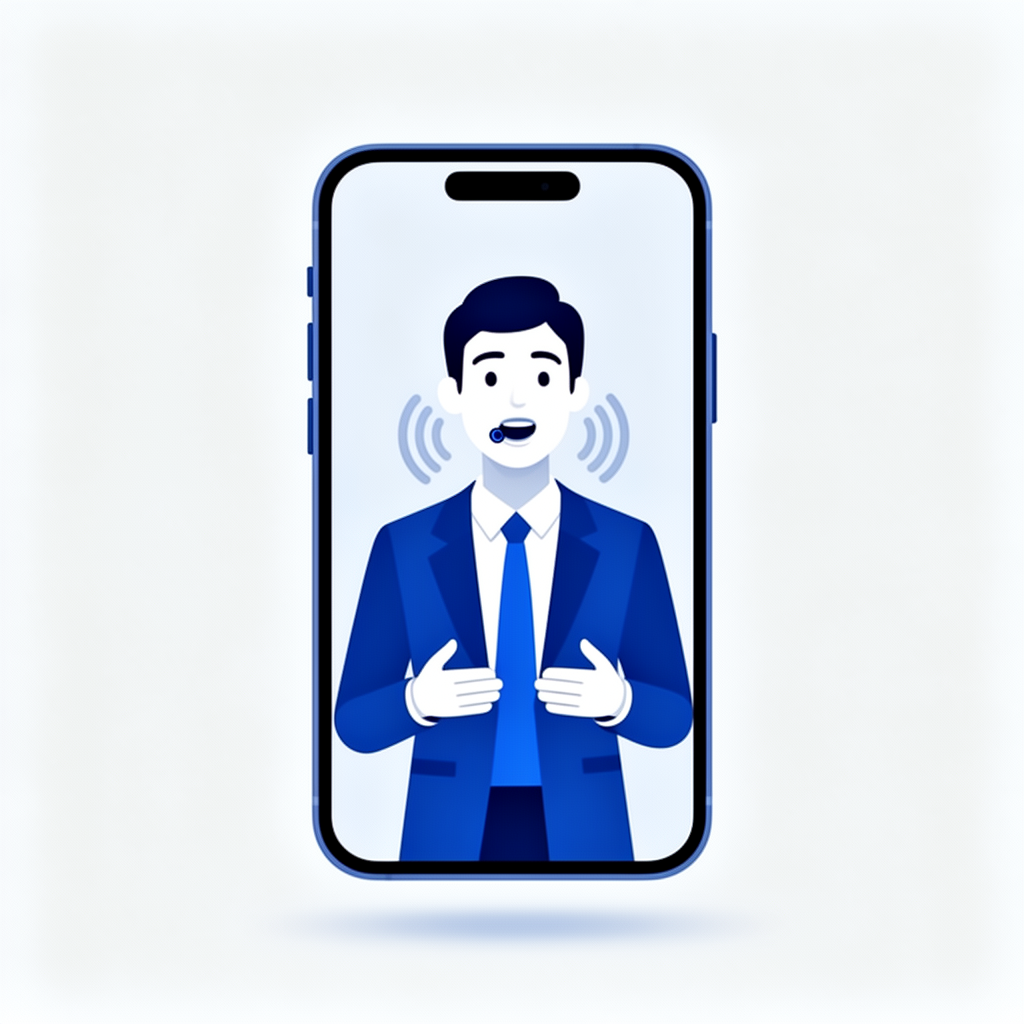
Table of Contents
- What Is a Talking Head Video?
- Why Business Owners Avoid Video (And How AI Solves It)
- How AI Talking Head Videos Work Without Your Face
- Step-by-Step: Create a Talking Head Video With AI
- Best Use Cases for Faceless Talking Head Videos
- Tips for Making Your AI Talking Head Video Look Professional
- Frequently Asked Questions
1. What Is a Talking Head Video?
A talking head video is a format where a person — or the appearance of a person — speaks directly to the camera. It is one of the most effective video formats for business because it feels personal and direct. The viewer feels like someone is speaking to them, not at them.
You see talking head videos everywhere: on product pages, YouTube channels, course platforms, explainer pages, and social media ads. They build trust faster than text or static images because they simulate face-to-face communication.
The traditional problem is obvious — you have to appear on camera. For many business owners, that is a dealbreaker. They are uncomfortable on camera, do not have video equipment, or simply do not want their face permanently attached to their brand.
AI changes that entirely.
2. Why Business Owners Avoid Video (And How AI Solves It)
The most common reasons business owners skip video content are:
- Camera anxiety. Most people are uncomfortable watching themselves on screen and find recording stressful.
- No equipment. A professional-looking setup requires a good camera, lighting, and a quiet space — none of which most offices have.
- Time. Recording, re-recording, and editing a single 60-second video can take hours.
- Consistency. Once your face is the brand, every future video needs the same person available to record.
AI talking head technology solves every one of these. You provide a script and a single image — a stock photo, an illustrated avatar, or a generated face — and the AI animates it with realistic lip-sync matched to your script or a voiceover. The result looks like a real person delivering your message, without you ever stepping in front of a camera.
Websistant's AI video generation includes talking head and lip-sync video as a built-in feature, letting you create faceless presenter videos directly from your browser.
3. How AI Talking Head Videos Work Without Your Face
The technology behind AI talking head videos combines two capabilities: facial animation and voice synthesis.
Facial animation takes a still image of a face — any face, including a stock photo or AI-generated avatar — and applies realistic motion to it. The mouth moves in sync with the audio, the head moves naturally, and subtle expressions appear to make the video feel lifelike rather than robotic.
Voice synthesis converts your written script into a spoken voiceover using an AI voice model. You choose from a range of voices by gender, accent, and tone. The resulting audio is clear and natural-sounding, and it is what drives the lip-sync animation on the face.
Put them together and you have a polished talking head video featuring a presenter who never had to sit in front of a camera.
Alternatively, if you are comfortable with your own voice but not your face, you can record a voiceover yourself and let the AI animate a chosen face to match it.
4. Step-by-Step: Create a Talking Head Video With AI
Step 1 — Write your script. Keep it short and conversational. Aim for 60 to 90 seconds of spoken content, which is roughly 150 to 225 words. Write the way you speak, not the way you write — short sentences, plain language, direct address.
Step 2 — Choose or create your presenter image. You have three options: use a licensed stock photo of a person, use an AI-generated face (many tools offer this), or use an illustrated avatar if you prefer a non-photorealistic look. The image should be a clear, front-facing headshot with the face well-lit and centred.
Step 3 — Select a voice. Choose an AI voice that fits your brand tone. A professional services business might suit a calm, authoritative voice. A lifestyle or e-commerce brand might prefer something warmer and more conversational. Most platforms offer previews so you can audition voices before committing.
Step 4 — Generate your video. Upload the face image, paste your script, select your voice, and generate. Websistant's AI talking head video tool handles the lip-sync and animation automatically, delivering a finished MP4 file within minutes.
Step 5 — Review and export. Watch the output and check that the lip-sync looks natural, the pacing feels right, and the overall tone matches your brand. If anything needs adjusting, tweak the script and regenerate. When you are happy, export the MP4 and embed it on your website or share it to social media.
5. Best Use Cases for Faceless Talking Head Videos
Website homepage introduction. A short presenter video on your homepage — "Hi, welcome to [Business Name], here is what we do" — immediately personalises the experience for first-time visitors without requiring you to be on camera.
Product or service explainers. Walk potential customers through exactly what a service includes or how a product works, using a presenter who speaks directly to them.
Online course content. If you sell courses or educational content, talking head videos make lessons feel more engaging and personal without requiring studio recording sessions.
FAQ videos. Turn your most common customer questions into short presenter videos, each answering one question. These work on FAQ pages, in email sequences, and as social media content.
Social media content. Vertical format talking head videos perform well on Instagram Reels, TikTok, and YouTube Shorts. AI lets you produce these at scale without filming anything.
6. Tips for Making Your AI Talking Head Video Look Professional
- Use a high-quality face image. The better the source image, the more realistic the animation. A blurry or low-resolution photo produces noticeably worse lip-sync results.
- Write scripts in short sentences. Long, complex sentences are harder for AI voices to deliver naturally. Short sentences with natural pauses produce better audio.
- Match the voice to your audience. A voice that feels right to you may not resonate with your customers. Think about who is watching and choose accordingly.
- Add captions. Most talking head videos are watched without sound on social media. Captions ensure your message is received regardless of whether the viewer has audio on.
- Keep the background simple. If the face image has a cluttered background, it distracts from the presenter. A clean, neutral background keeps focus on the message.
- Use consistent presenters. If you use the same AI face across multiple videos, it builds a recognisable brand character over time — a virtual spokesperson for your business.
7. Frequently Asked Questions
Is it legal to use an AI-generated face in a business video? Yes, provided the face is either AI-generated specifically for your use or sourced from a licensed stock photo with the appropriate commercial usage rights. Avoid using real people's faces without their consent.
Will viewers know the presenter is AI-generated? With current technology, well-produced AI talking head videos are convincing enough for most business use cases. Adding natural-sounding voiceovers and quality source images significantly improves realism.
Can I use my own voice with an AI face? Yes. You can record your own voiceover and use the AI only for the facial animation, giving you the privacy of not being on camera while keeping your authentic voice.
How long can an AI talking head video be? This depends on the platform. For most business use cases, 30 to 90 seconds is ideal. Longer videos are possible but tend to show more imperfections in the animation over extended durations.
Do I need any software installed? No. Browser-based tools like Websistant's AI video generation run entirely online — no downloads, no plugins, no editing software required.
Want to create your first talking head video without going on camera? Try Websistant's AI video generation — your first $5 in credits is free, and your face never needs to appear on screen.