Image to Video AI: How to Turn Product Photos Into Marketing Videos
Published on: 8 October 2026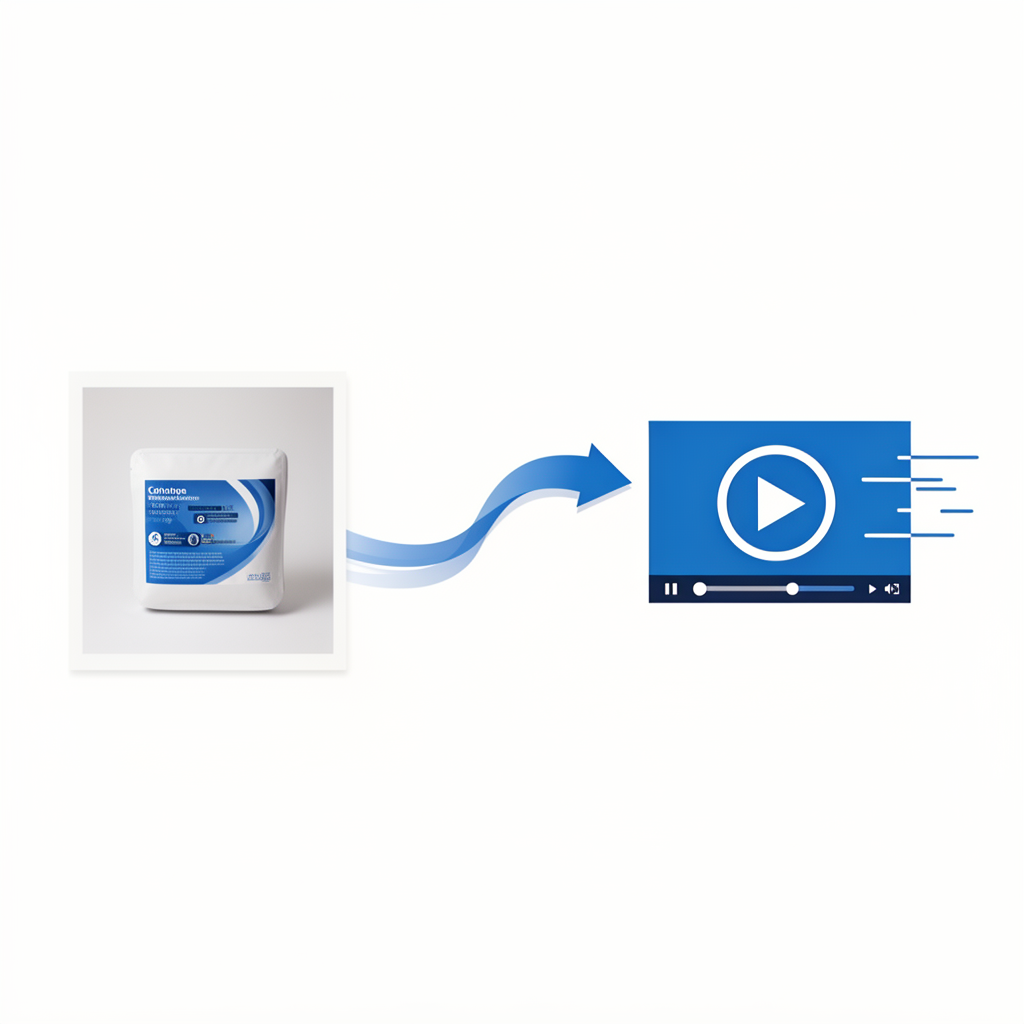
Table of Contents
- Why Product Videos Outperform Static Photos
- What Is Image to Video AI?
- What Types of Product Photos Work Best?
- Step-by-Step: Turn a Product Photo Into a Marketing Video
- Where to Use Your Product Videos
- Tips to Get the Most From Image to Video AI
- Frequently Asked Questions
1. Why Product Videos Outperform Static Photos
A product photo shows what something looks like. A product video shows what something does, how it feels, and why someone should want it. That difference in experience translates directly into higher engagement, longer time on page, and more conversions.
Research consistently shows that shoppers are significantly more likely to purchase a product after watching a video about it. On social media, video content receives far more reach and engagement than static image posts across every major platform.
For most small businesses, the gap between knowing video works and actually producing it comes down to one thing: creating video from product photos has traditionally required a videographer, a studio, and editing software. That is no longer true.
Websistant's AI video generation can take a single product photo and animate it into a polished marketing video in minutes — motion, transitions, and all — with no filming required.
2. What Is Image to Video AI?
Image to video AI is a technology that takes a still photograph and generates a short video clip from it. The AI analyses the image and adds realistic motion — a product rotating slowly, a liquid pouring, fabric rippling, or a camera slowly pulling back to reveal the full product.
The result is a video that feels cinematic and professional, created entirely from a photo you already have.
Unlike traditional video production, there is no need for:
- A camera or lighting setup
- A studio or backdrop
- A videographer or editor
- Multiple takes or post-production
You upload the photo, describe the motion or mood you want, and the AI generates the clip. The output is a standard MP4 file ready to embed on your website, share on social media, or run as a video ad.
3. What Types of Product Photos Work Best?
Not all product photos produce equally good results with image to video AI. Here is what to look for:
Clean background. Photos with a plain white, black, or neutral background give the AI the clearest subject to work with and produce the cleanest motion effects.
Good lighting. Well-lit photos with clear shadows and highlights allow the AI to add realistic depth and dimension to the animated clip.
Single subject. Photos featuring one product or one focal point tend to produce better results than busy, multi-item shots.
High resolution. The higher the resolution of the source photo, the sharper and more detailed the output video will be. Aim for at least 1000 x 1000 pixels.
Front-facing or three-quarter angle. Photos taken straight-on or at a slight angle give the AI the most information to work with when generating motion.
If your existing product photos were taken for an e-commerce listing — white background, clean lighting, single product — they are very likely already ideal for image to video AI.
4. Step-by-Step: Turn a Product Photo Into a Marketing Video
Step 1 — Choose your product photo. Select the best photo of the product you want to feature. Ideally this is a high-resolution image with a clean background. If you have multiple angles, choose the one that shows the product most clearly and attractively.
Step 2 — Write a motion prompt. Describe the movement or atmosphere you want in the video. Examples: "slow zoom in on the product with soft lighting", "product rotates 360 degrees on a white background", "camera pulls back slowly to reveal the full product with a warm glow". The more specific your prompt, the closer the output will be to what you have in mind.
Step 3 — Generate the video. Go to Websistant's AI video generation tool, select image to video, upload your product photo, enter your motion prompt, choose your output format (landscape for website and YouTube, square for Instagram feed, vertical for Reels and TikTok), and generate. Your video is ready in minutes.
Step 4 — Review the output. Watch the clip and check that the motion looks natural, the product remains clear throughout, and the overall feel matches your brand. If anything is off, adjust the prompt and regenerate.
Step 5 — Export and deploy. Download the MP4 file and use it wherever you need it — embed it on your product page, upload it to your social channels, or use it as the creative in a paid ad campaign.
5. Where to Use Your Product Videos
Product pages on your website. Replace or supplement your static product images with a short animated video. Visitors who see the product in motion are more likely to add it to their cart or make an enquiry.
Instagram and Facebook ads. Video ads consistently outperform image ads in click-through rate and cost per result. A 15 to 30 second product video from a single photo is enough to run an effective paid campaign.
Instagram Reels and TikTok. Short-form video platforms reward consistent video content. Product animation videos are easy to produce at scale and perform well as organic content.
Email campaigns. Embedding a video thumbnail with a play button in a marketing email drives significantly higher click rates than a static image. Link the thumbnail to your product page or a landing page where the full video plays.
Google Shopping and display ads. Video creatives are available across Google's ad network and can feature directly in shopping results for eligible accounts.
Your AI-built website homepage. A hero section featuring an animated product video immediately communicates quality and professionalism to first-time visitors.
6. Tips to Get the Most From Image to Video AI
- Keep motion subtle for premium products. A slow, elegant zoom or gentle rotation communicates quality. Fast or dramatic motion can feel cheap for high-end products.
- Match the energy to your audience. A product aimed at young consumers suits dynamic, fast-paced motion. A product aimed at professionals suits something slower and more considered.
- Create multiple versions. Generate landscape, square, and vertical versions of the same video so you have the right format ready for every platform without extra work.
- Add a text overlay or caption. A short product name or offer text overlaid on the video helps viewers understand what they are looking at immediately, especially on social media where videos autoplay silently.
- Batch produce. If you have a product catalogue, set aside time to generate videos for your top 10 or 20 products in one session. At $0.02 per second, a 20-product library of 30-second clips costs around $12.
- Use consistent motion styles. Applying the same motion style across all your product videos creates a cohesive, professional brand aesthetic.
7. Frequently Asked Questions
Do I need a professional product photo to use image to video AI? A clean, well-lit photo produces the best results, but you do not need a professional studio shoot. A photo taken with a modern smartphone against a plain background can work very well.
How long are image to video AI clips? Most platforms generate clips between 3 and 15 seconds. For marketing use, a 5 to 10 second loop is often ideal — long enough to show the product clearly, short enough to hold attention.
Can I use the video in paid advertising? Yes. The MP4 output from AI video generation is a standard video file that meets the creative requirements for Facebook, Instagram, Google, and TikTok ads.
What if the motion in the generated video does not look right? Adjust your motion prompt to be more specific and regenerate. Describing the exact type of movement, speed, and camera angle in detail consistently produces better results.
How much does it cost to generate a product video? With Websistant's pay-per-use pricing at $0.02 per second, a 10-second product clip costs $0.20. New accounts receive $5 in free credits — enough to generate 25 ten-second clips before spending anything.
Ready to turn your product photos into marketing videos? Try Websistant's image to video AI — upload a photo, describe the motion, and your video is ready in minutes.